
Download and Install Anypoint Studio (Windows)
-
Download the Anypoint Studio installation file from the Download Site.
-
Extract the Windows installation file into the
C:\root folder.To avoid installation errors:-
Ensure that you extract the installation file into the
C:\folder so that theAnypointStudio.exefile is located in theC:\AnypointStudio\folder after installation. -
Ensure that your user has read and write permissions for the
C:\directory. -
If you use a Windows antivirus application, ensure that the
plugins/andfeatures/directories are in the trusted category.
-
-
Open the extracted Anypoint Studio.
When Studio first runs, the embedded OpenJDK Platform libraries might cause a Windows Security alert.
Ensure to allow the OpenJDK Platform library from Temurin publisher through your Windows firewall. -
Click OK to accept the default workspace.
-
If you choose to use an existing workspace, the workspace must be created with Studio 7.0 or later.
-
Exclude Studio from Windows Defender Scans
While Windows Defender is a tool for keeping your computer safe, it can slow down the performance of Studio because it scans files in real-time as they are accessed, which causes delays. To prevent performance issues, you can completely exclude Studio from Windows Defender real-time protection:
-
Run Studio.
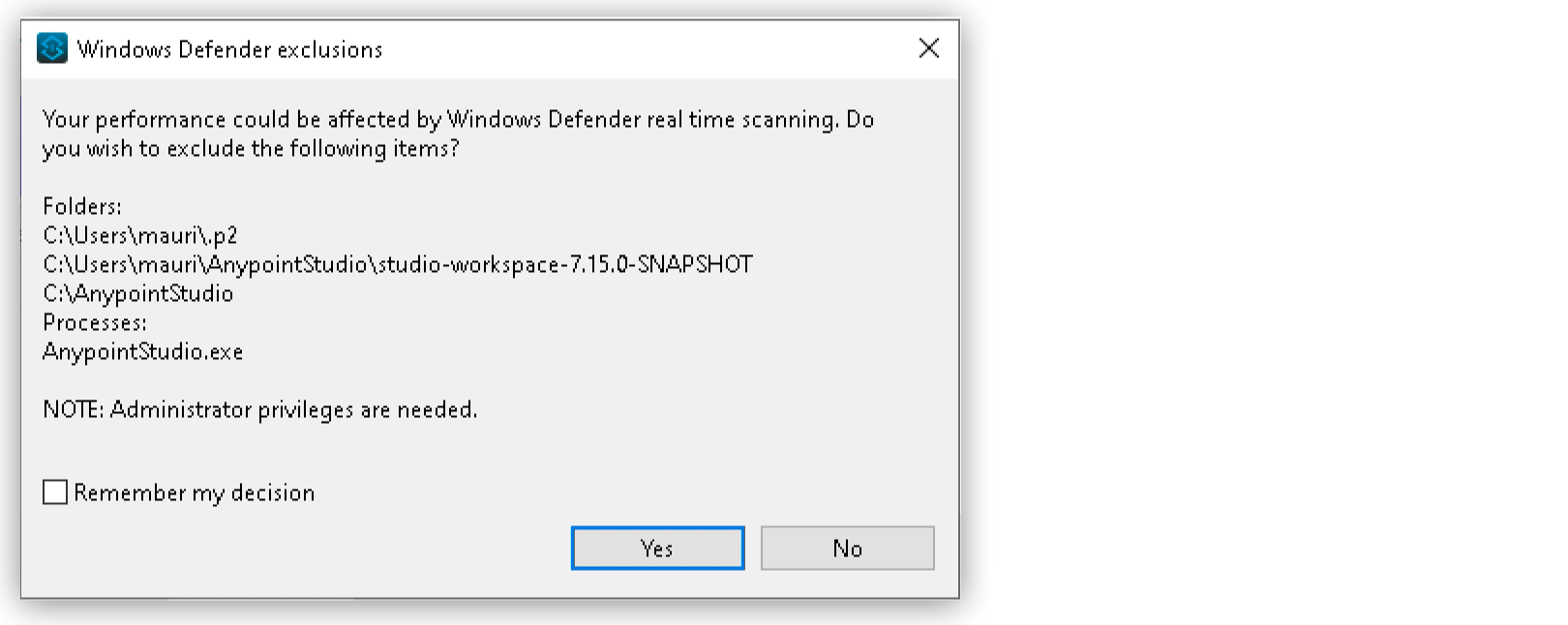
A Windows Defender real-time protection notice asks whether to exclude Studio folders and processes:
-
The
/.p2folder stores Studio plugins. -
The second folder shows the path of the workspace that you select when launching Studio.
-
The third folder points to the Anypoint Studio application location.
-
-
Optionally, select the Remember my decision checkbox.
-
Click Yes.
-
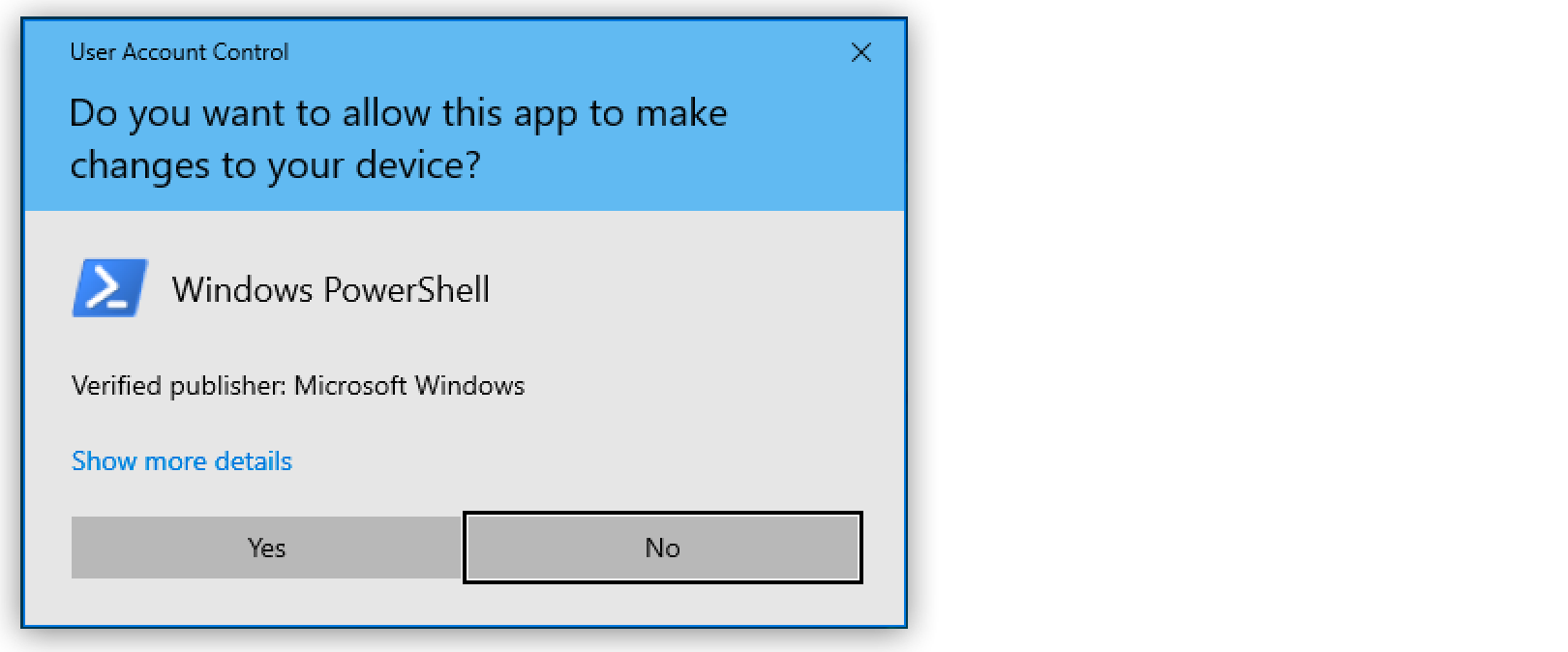
Click Yes again when Windows PowerShell requests permission to make the change:
| If you select the Remember my decision checkbox and click No, Windows Defender real-time protection scans Studio folders and processes as you work with them. |