Configuring Text Panels in a Custom Dashboard

Configure HTML and Markdown text panels in Anypoint Monitoring custom dashboards.
Before You Begin
Create or navigate to the text panel you plan to configure:
-
If your text panel exists, open its configuration view:
-
From Custom Dashboards, open the custom dashboard that contains your text panel.
For guidance, see View a Custom Dashboard.
-
Click the text panel’s
 (More menu), and select Configure.
-
-
If the text panel doesn’t exist:
-
Create the text panel.
For guidance, see Add Charts to a Custom Dashboard.
-
Navigate to its configuration view.
-
Create a Text Panel
Create a text panel in a custom dashboard by following the guidance in Add Charts to a Custom Dashboard.
Configure a Text Panel
Configure a panel with HTML or Markdown text in a custom dashboard.
-
From Custom Dashboards, open the custom dashboard that contains your text panel.
For guidance, see View a Custom Dashboard.
-
Click the panel’s
(More menu), and select Configure to open the panel’s General configuration tab:-
Provide a title and description.
-
Select the markdown or html mode.
-
Provide content in the selected mode.
For examples and more detailed steps, see:
-
-
Click Apply Changes.
-
Exit the configuration view by clicking the X next to the configuration tabs.
Add Markdown to a Text Panel
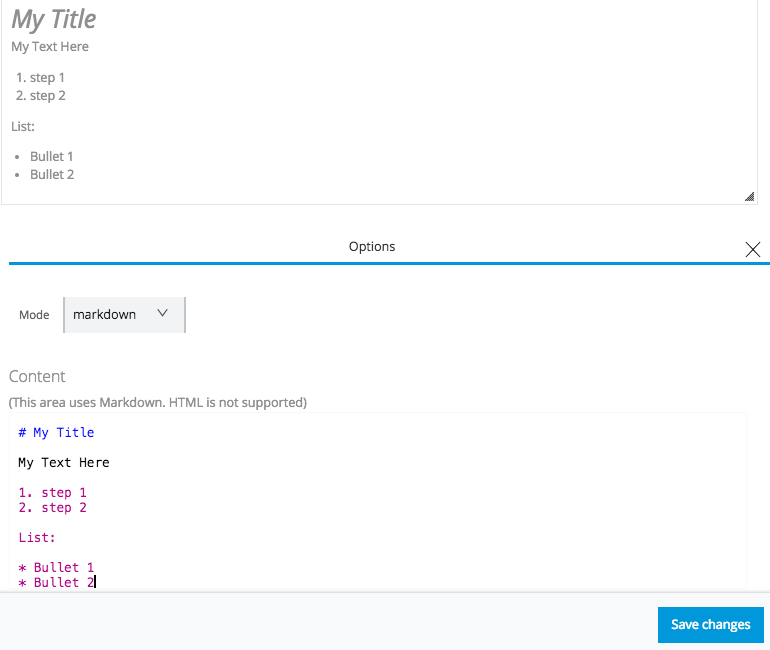
This Markdown example shows how your text appears in the UI as you type.
Add HTML to a Text Panel
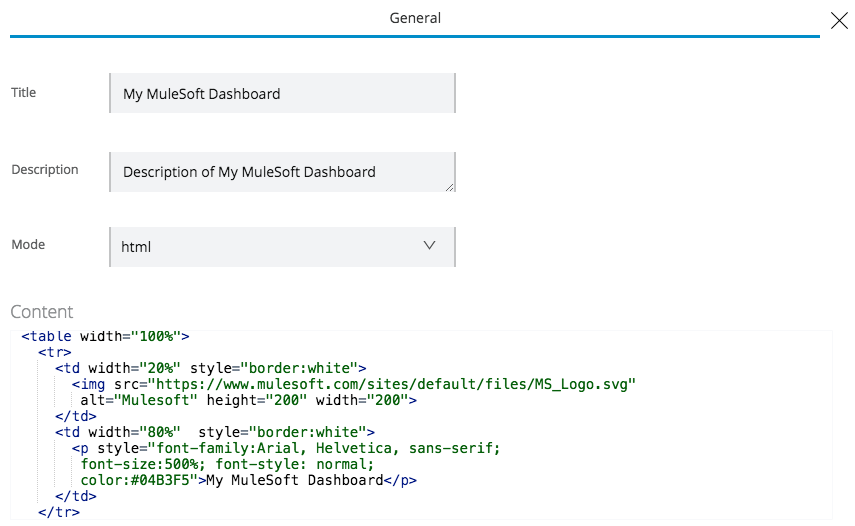
This HTML example creates the heading shown in Text example: